Controls Guide for Literally SPRUNKI
Drag characters, fill stage slots, switch modes, remove clutter, and save mixes on every device.
Why controls matter in a mixer
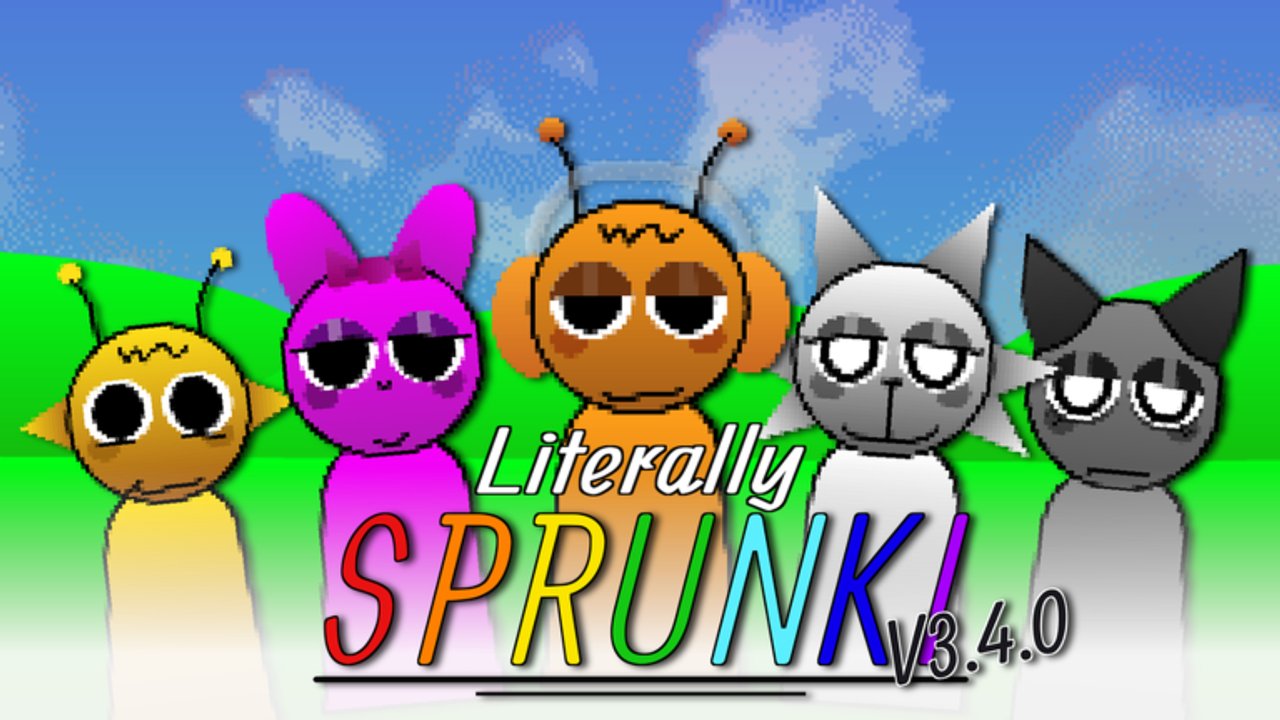
Literally SPRUNKI (Roblox title [3.6.0] Literally SPRUNKI) is a stage-first music mixer: you place character loops, listen, and rearrange. There is no combat hotbar and no currency wallet. Mastering drag-and-drop, slot awareness, mode switching, and saving matters more than any fake codes list. This page covers PC, mobile, and console habits so your first hour is about sound—not fighting the UI.
If you have not joined yet, pair this with Getting Started. Mode differences live on Modes Overview, Horror Mode, and Pyramixed Mode. Badge goals that depend on filling the stage or cycling modes are documented on Badges. Optional Robux shortcuts stay on Gamepasses.
The experience released 7 December 2024 under group crowned7885 (lead legit_vib, contributor R_299P). Servers list maxPlayers 6, but the fantasy stays personal mixing—there is no shared raid objective. Visits sit around 88M+. Still no promo codes and no soft currency.
Drag and drop on PC
On desktop Roblox:
- Move the cursor over a character in the selection row.
- Hold the primary mouse button and drag toward an empty stage slot.
- Release when the slot highlights or the character snaps into place.
- Listen for a few bars before adding the next part.
Tips that save time:
- Keep the Roblox window focused; alt-tab mid-drag often cancels placement.
- Zoom or pan only after a character is seated—camera fidgeting mid-drag drops pieces.
- Prefer one deliberate placement over rapid spam; muddy stacks start with panicked drops.
- If a drag fails, click-release on the row and try again instead of mashing.
Keyboard users still rely on pointer drag for placement. There is no “equip then hotkey drop” combat flow. Treat the mouse as your instrument hand.
Drag and drop on mobile
On phone or tablet:
- Tap and hold a character icon until it lifts or follows your finger.
- Slide to an open stage slot without lifting.
- Release to seat the loop.
- Wait through one phrase before the next drag so you can hear clashes early.
Mobile pitfalls:
- Fat-finger swaps: lift carefully so you do not reseat the wrong neighbor.
- Notification banners can cancel a hold—enable Do Not Disturb for serious sessions.
- Portrait mode can crowd the row; landscape often gives cleaner drag paths.
- Low frame rate makes release timing sloppy; close background apps if snaps feel late.
Headphones help on mobile more than on PC because phone speakers hide mid mud. Confirm volume before you fill half the stage.
Console and controller notes
Console Roblox uses a virtual cursor or pointer paradigm depending on platform settings:
- Move the pointer over a character.
- Hold the confirm button to pick up.
- Aim at an empty slot and release confirm to place.
- Use the same confirm/cancel language to remove or reopen UI panels.
Controller advice:
- Slow the pointer speed in Roblox settings if you overshoot slots.
- Avoid sprinting the stick while holding a character; micro-aim first.
- Map familiarity beats button memorization—practice empty-slot drops for two minutes before chasing badges.
- If UI focus jumps to the Roblox menu, close it and reselect the stage before dragging again.
Across PC, mobile, and console, the rule is identical: pick up → aim at empty slot → release → listen.
Stage slots and the Full Stage mindset
The stage is a fixed set of character slots. Each seated character loops a beat, bass, melody, effect, or vocal part. Filling every spot is how you earn the Full Stage badge (see Badges), but a full board is a poor default for learning.
Practical slot habits:
- Leave intentional gaps while you train your ear.
- Seat a beat first so every later part has a pulse to lean on.
- Prefer role diversity (beat + melody + optional vocal) over stuffing similar loops.
- When you do fill every slot for the badge, strip back afterward and keep the five that still sing.
Slot awareness also stops double-drops: if a slot is occupied, remove or replace deliberately instead of stacking invisible conflicts. Pair this page with Mixing Tips once placement feels automatic.
Removing characters cleanly
Removal is half of Literally SPRUNKI. When a loop muddies the mix:
- Select the offender on the stage (tap/click the seated character).
- Use the remove / clear control shown in the UI, or drag the character off-stage if that gesture is available on your device.
- Listen for several bars with the gap open.
- Only then audition a replacement in the same role.
Removal checklist when you are lost:
- Pull vocals first if the hook smears the beat.
- Pull duplicate beats next.
- Pull stacked effects before you touch a working melody.
- Never replace three parts at once—you will not know which fix worked.
Clean removal is also how you prepare for mode switches: a sparse board survives Horror and Pyramixed better than a maxed Normal spam rack.
Mode switching UI
Literally SPRUNKI ships three presentations: Normal (Sprunki), Horror, and Pyramixed. Horror and Pyramixed unlock through playtime or Instant passes (42 and 49 Robux). The mode control sits in the experience UI—open it, pick the unlocked mode, and let the presentation reload before you judge the mix.
Switching tips:
- Save or screenshot a mix you like on Normal before flipping moods.
- After a switch, wait for audio/visual settle; mid-drag switches drop focus.
- Re-run a short removal pass; dark or remixed pockets expose clutter fast.
- For Mod Explorer, visit Normal, Horror, and Pyramixed in one session—details on Badges and comparison notes on Modes Overview.
Do not confuse mode buttons with gamepass prompts. Instant Horror and Instant Pyramixed only skip timers; they do not add a second control scheme. Pass math: Gamepasses.
Saving mixes and Song Saver
Use the in-experience save control when you land a loop worth keeping. The first successful save ties to the Song Saver badge. Habit loop:
- Build a readable stack (even three parts can qualify as “worth saving”).
- Trigger save and confirm the UI acknowledges it.
- Note the mode name in your own caption if you share outside Roblox.
- Keep iterating—saves are breadcrumbs, not a ranked ladder.
If save fails, check connectivity, retry once, and avoid spamming the button. Saves do not create promo codes or currency; they store your arrangement progress inside the mixer fantasy.
Device-agnostic quality tips
- Sound on before the first drag; silent sessions teach nothing.
- Ten quiet seconds after every add beats five panicked swaps.
- Full-stage fills are for badges and experiments—daily practice should stay sparse.
- After any Roblox client update, retest drag release timing once; input latency shifts happen.
- Servers may include other people up to the 6-player cap, but your controls still target your stage workflow—ignore distraction, keep listening.
Practice drill (fifteen minutes)
- Minutes 0–3: place and remove a single beat five times on your device of choice.
- Minutes 3–7: add melody, then remove and replace it twice.
- Minutes 7–10: add one vocal; remove it; save the three-part version if it holds.
- Minutes 10–13: open mode UI; confirm which modes you own; switch only if unlocked.
- Minutes 13–15: strip to beat alone, then rebuild once without rushing.
Finish by skimming Getting Started if onboarding is still fuzzy, or Mixing Tips if placement is easy but mixes still smear.
Related links
- Getting Started — first-session checklist
- Modes Overview — Normal vs Horror vs Pyramixed
- Badges — Full Stage, Song Saver, Mod Explorer, and more
- Mixing Tips — role discipline after controls feel natural
- Gamepasses — Instant Horror 42, Instant Pyramixed 49, character packs
Controls are simple on purpose. Drag with intent, leave empty slots while you learn, remove before you replace, switch modes only after the board is quiet, and save the loops you can still explain by ear.
Frequently Asked Questions
Quick answers about modes, mixes, gamepasses, and common player questions.
How do I place characters in Literally SPRUNKI?
Drag a character from the selection row onto an empty stage slot, then release. The same pick-up → aim → release flow works on PC, mobile, and console pointers.
How do I remove a character from the stage?
Select the seated character and use the remove/clear control, or drag it off-stage when that gesture is available. Listen before seating a replacement.
Where do I switch Normal, Horror, and Pyramixed?
Use the in-experience mode UI after each mode is unlocked via playtime or Instant passes. See Modes Overview and Badges for Mod Explorer.
Does saving a mix do anything besides storage?
Saves keep arrangements you like and progress the Song Saver badge on first save. They do not grant codes or currency.
Is the control scheme different if other players are in the server?
No. Max players is 6, but placement, removal, modes, and saves still focus on your mixer workflow rather than a shared objective.